AI Coding Tips I Actually Use Every Day (Cursor + Angular)
I've been talking to my editor, asking one AI model to review another's work, and letting agents check their changes in the browser. These are a few of the things I've been doing lately to make everyday development a little more efficient.
Most of my work involves Angular applications, including multiple apps in a monorepo with shared libraries.
That’s where these habits come from, but many of them apply regardless of your framework.
Some are simple conveniences. Others help me get better results from coding agents. And a few come with tradeoffs that I’ve learned to watch for.
Why I Keep Coming Back to Cursor
I’ve played around with Claude Code, but Cursor is still where I feel most comfortable.
Coming from VS Code, the editor feels familiar, and I like having the AI features right there alongside my code.
When I first started using Cursor, tab completion was the feature that impressed me most. I was writing more code by hand then, and it was easily one of my favorite parts of the experience.
These days, I use agents to handle more of the implementation.
But whenever I need to get in and make a change myself, that tab completion is still useful.
For me, that combination works well. Let an agent build something, then jump into the code when I need to (which is very rare these days).
Give the Agent Some Angular Guidance
One of the first things I do when working on an Angular project is to ensure the Angular agent skills are installed.
These help guide the agent toward more consistent results when generating components, directives, services, and other Angular code. They also give it guidance around current features and best practices.
That’s important because getting code that runs is only part of the task.
I also want code that fits the project and uses the framework appropriately.
I still review the result, but giving the agent that context up front really helps.
Try Speaking Your Prompts
This is a small thing, but it’s become a regular part of how I work…
I use my voice as much as possible when prompting agents.
There are some great tools out there for this, like Wispr Flow (Paid) or Handy (Free). But for now, I’m just using native dictation.
I’m already describing what I want in natural language, so saying it out loud often feels easier than typing it. And since I’m not the best typist, it cuts down on some of the spelling mistakes too.
For example, I might say:
Add a welcome message to the home page. Make it its own component, and make it really colorful.
Then I submit the prompt and let the agent work.
It’s particularly helpful when I have several details in mind and want to get them into the prompt quickly.
Use Another Model to Review the Changes
For smaller tasks that I think Grok can handle well, I’ll often start there.
Then I’ll switch to Claude Opus and ask it to evaluate the changes.
Usually, the prompt is pretty simple:
Review these changes. Make sure they’re as simple and minimal as possible, and that everything we added is actually necessary.
I want the review to question whether the added code needs to exist, as well as whether it works.
Often, this second pass finds things to simplify. And because Opus is reviewing an existing implementation, it may have less work to do than if I’d given it the whole task from the beginning.
I’ve found this useful, but it doesn’t work equally well for every task.
Sometimes Switching Models Creates More Work
If a feature is more complicated, starting with a simpler model can send the implementation in a direction that requires a lot of cleanup.
I’ve also seen Opus take that existing approach and improve it without really questioning the approach itself.
When that happens, I’ll ask something like:
If you were building this today, without considering the implementation we already have, would you do it this way?
Sometimes the answer leads to a very different solution.
And one I prefer.
That’s why I don’t automatically split every task across models. For some features, it’s better to use Opus from the start.
As I use the models, I get a better feel for which tasks are a good fit for each.
Plan, Build, Then Review
For more involved features, another approach I use is to start with Opus in planning mode.
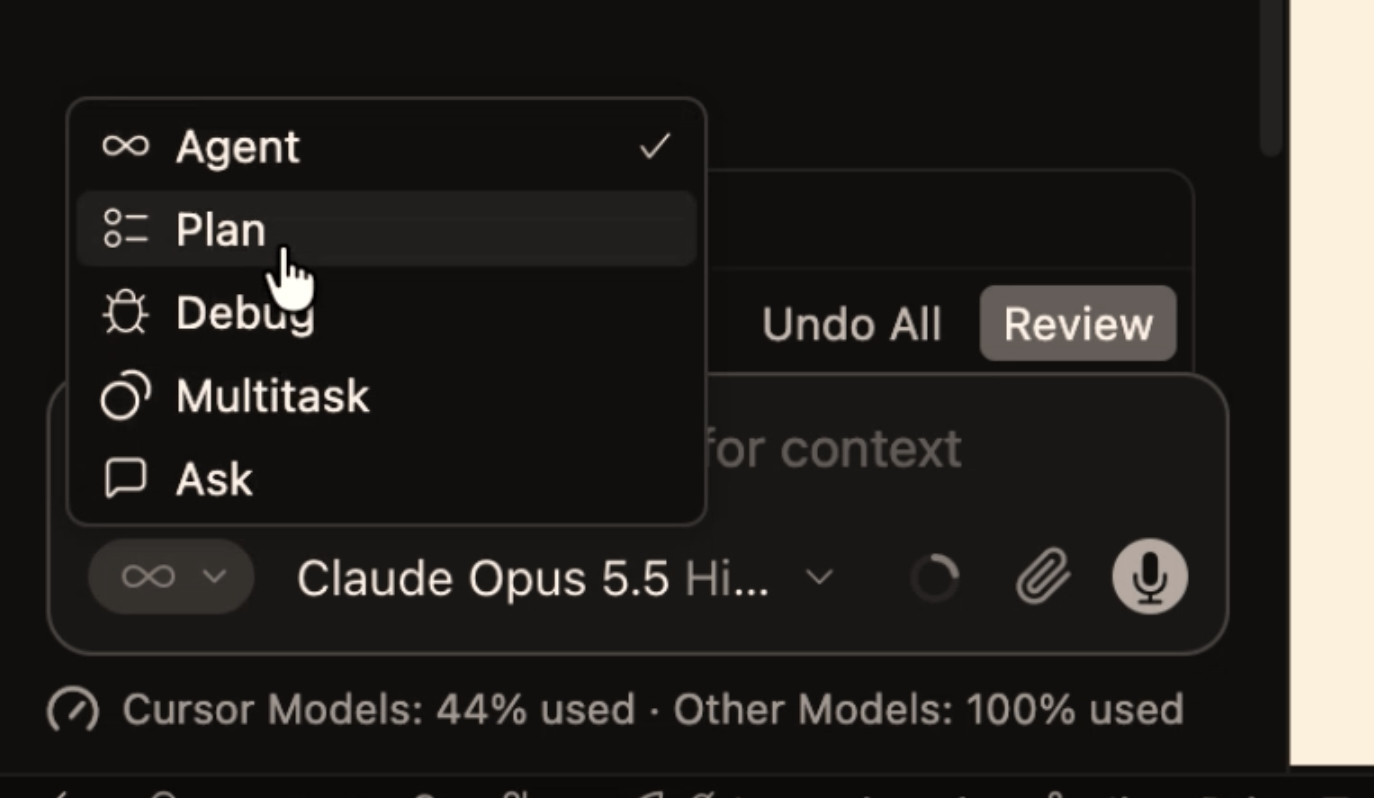
I describe the feature in as much useful detail as I can. That might include a ticket from the design team, or it might just be my explanation of what needs to happen.
Once the plan is ready, I’ll sometimes use Grok to implement it.
If I know that’s the approach I’m going to take, I’ll tell Opus while it’s planning.
After the build, I switch back to Opus for another review, asking whether the changes are simple, minimal, and necessary.
It’s a bit of a sandwich:
- Opus creates the plan.
- Grok implements it.
- Opus reviews and refines the result.
I’ve had good results with this, but the same tradeoff applies. If the handoffs create more rework than they save, I’ll keep the task with Opus.
Ask for a Commit Message
Cursor has a built-in option to generate a commit message, but I don’t really love the messages it generates.
Another option I use is to ask Grok directly:
Give me a good commit message for these changes.
One thing I like about this approach is that it can look at the existing commit messages in the repository and follow that style.
I still check the message before using it, but it saves me a little time and usually gives me a useful starting point.
Keep Model Usage Visible
I also like having my model usage visible in Cursor.
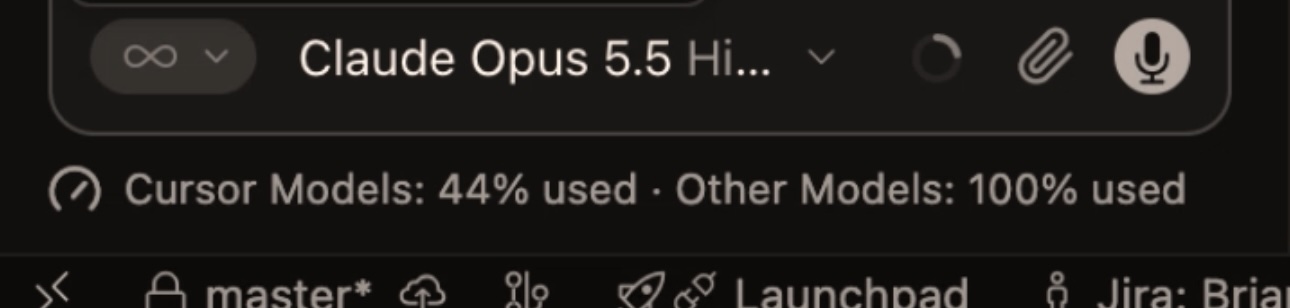
In the setup shown in the video, I go to Settings → Agents → Usage Summary and set it to Always.
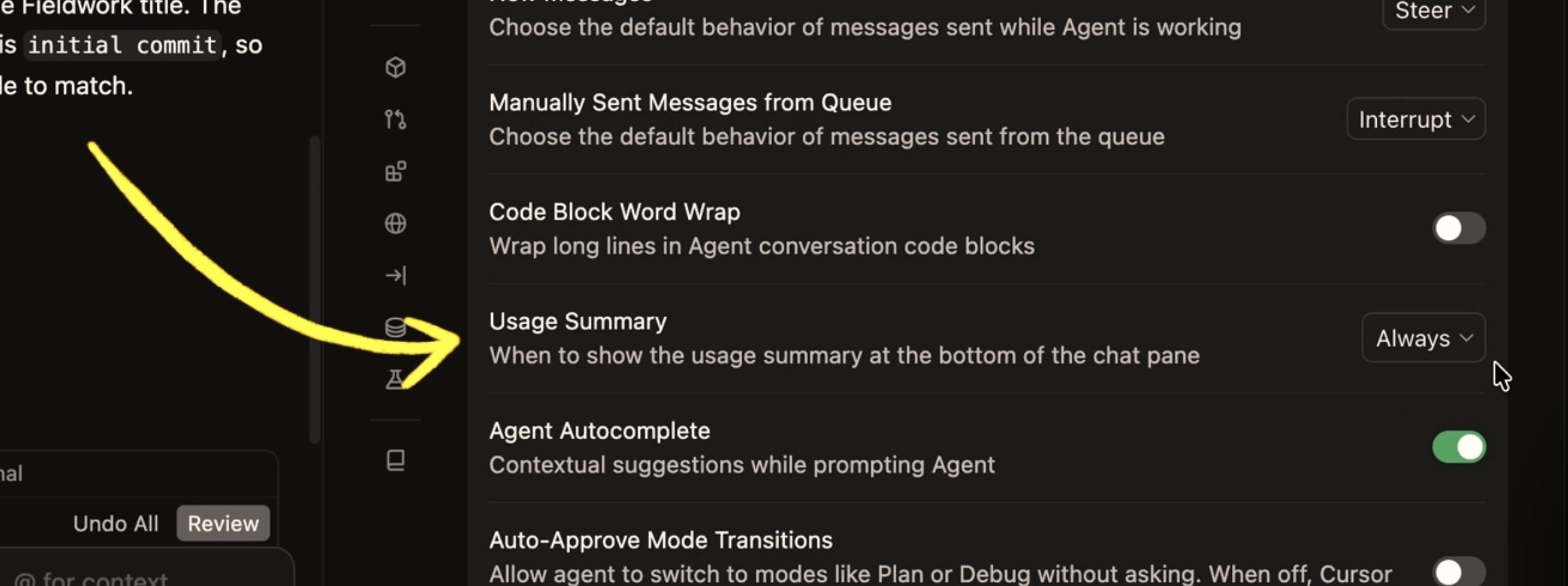
That keeps the information in view while I’m working, which helps me make decisions about which model to use.
It’s a small setting, but I find it more useful than remembering to check usage separately.
Let the Agent Check Its Changes in the Browser
One of the things I’ve been finding more useful lately is letting Cursor interact with the running app.
Cursor has a built-in browser, but I normally work with two large monitors. I like having the editor on one and the app running in a separate browser on the other.
An MCP server connects that external browser to Cursor, allowing the agent to interact with the page.
It can work through the UI, enter data, and check whether its changes behave as expected.
I’ve also created a custom skill for this setup. That lets me use a short instruction like:
Open app.
The skill tells the agent that I mean to open the app in the external browser it can control.
This fits into the environment I already use for development. The agent can check its work, and I can still inspect the page and use the browser’s developer tools myself.
What’s Been Useful for You?
These are a few things I’ve been using lately to get more useful results from AI while keeping the code manageable.
I’m still adjusting which models I use, when I plan, and how I review what gets built.
If you’ve found a prompt, setting, or habit that makes your everyday development work easier, let me know in the comments.
I’d like to hear what’s working for you.