Better Numeric Inputs in Angular (Signal Forms + Angular 22)
Signal Forms just fixed a subtle, but important, issue you’ve likely shipped without realizing. If you’re using <input type="number">, it's likely that you're introducing UX issues that only show up during real interaction. In this example, I'll show you a better approach that will be available in Angular v22.
Why Number Inputs Break UX in Angular Forms
Let’s start with a typical setup.
We have a typed form model where age is a number and can be null:
interface SignupFormData {
  username: string;
  email: string;
  age: number | null;
}
Then we have a signal-backed model to store the form data where the age field is initialized to null:
protected model = signal<SignupFormData>({
  username: '',
  email: '',
  age: null,
});
After this, we have the form configuration created with the form() function from the Signal Forms API and our model signal:
protected signupForm = form(this.model, s => {
  required(s.username, { message: 'Username is required' });
  required(s.email, { message: 'Email is required' });
  required(s.age, { message: 'Age is required' });
});
This form is already setup with basic required() validators for the username, email, and age fields.
So this is what we’re starting with.
Now let’s finish adding the logic for the age field.
First, we want to prevent folks from joining if they’re under 18, so let’s add a min() validator.
min(s.age, 18, { message: 'You must be at least 18' });
Then, we want to ensure the age entered is valid.
If it’s greater than 120, it’s probably not valid, so let’s add a max() validator:
max(s.age, 120, { message: 'Please enter a valid age' });
That’s all we need here.
Now let’s switch over to the template and add the field itself.
Since age will always be a number, we should use a number input, right?
Let’s try it!
We’ll add a number type input and bind it to the age field using the formField directive.
<input
  type="number"
  [formField]="signupForm.age" />
Now, this probably looks correct, but it really isn’t.
This is one of those cases where the default looks right but causes subtle issues in real use.
For one, the browser will automatically add a spinner control to the input:

These are rarely useful except in cases where you actually have an incremental number.
Which maybe you could argue we have here, but who wants to enter their age this way?
Also, if you use your mousewheel over the input, it will change the value too.

In our case this isn’t too bad but think of something like a postal code or credit card CVV number.
It just wouldn’t make sense.
And this isn’t just something I’m making up, MDN explicitly recommends avoiding number inputs in many cases.
So, let’s switch over to the recommended approach.
Step 1: Switch to a Text Input
For this, all we need to do is replace this:
<input
  type="number"
  [formField]="signupForm.age" />
With this:
<input
  type="text"
  inputmode="numeric"
  [formField]="signupForm.age" />
This removes browser-controlled behavior while still triggering the numeric keyboard on mobile thanks to the inputmode attribute.
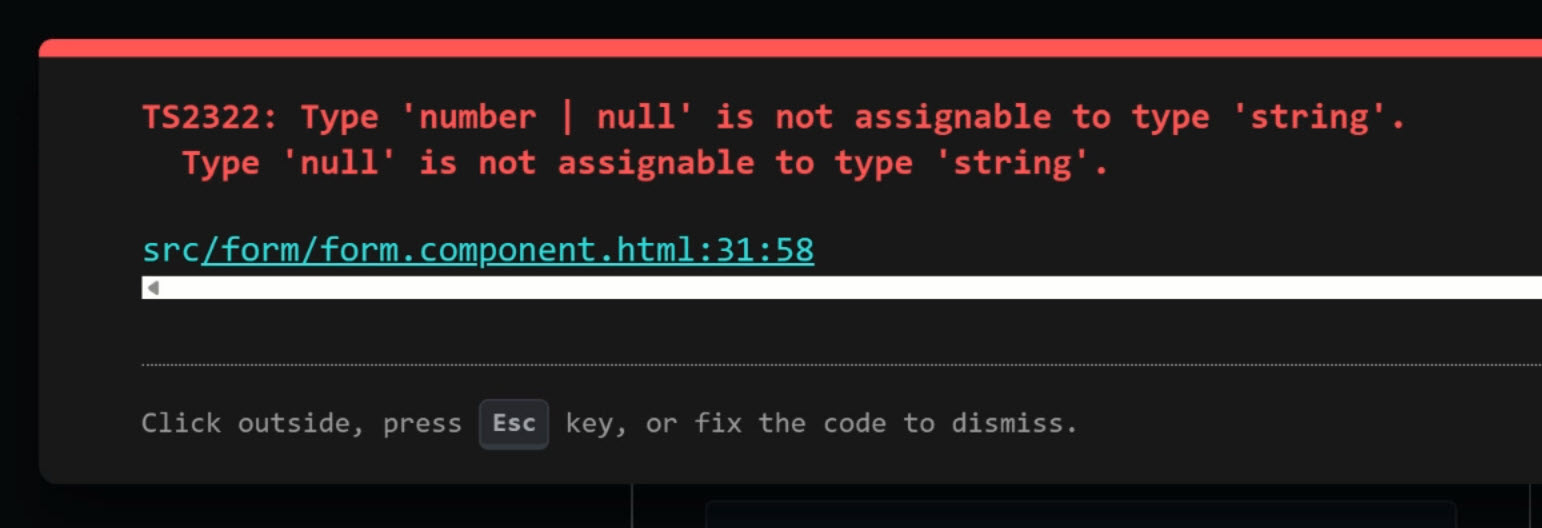
At this point (pre-Angular 22), this breaks typing:
Step 2: Angular 22 Fix: Number ↔ Text Binding
Previously, with Signal Forms:
- Text input →
string - Model expects →
number | null - Result → type mismatch
Angular 22 fixes this.
After upgrading, Signal Forms:
- Accept text inputs for numeric fields
- Convert values to
number - Map empty input to
null(not'')
This is the key improvement.
Step 3: Keep Validation in the Schema
If we want to strictly adhere to the MDN guidance we would add attributes like these:
<input
  pattern="[0-9]*"
  min="18"
  max="120" />
But these aren’t needed here.
With Signal Forms:
- Validation belongs in the schema
- Template stays declarative
So we’ll keep the validation where we have it, and we’ll remove these attributes.
Step 4: Restrict Input via Keyboard Handling
According to MDN, browsers are inconsistent at enforcing numeric input, even with the correct inputmode.
So we need to enforce it ourselves.
To do this, we’ll add a (keydown) event handler to the input.
We’ll call it onAgeKeydown and it will take a KeyboardEvent parameter.
<input
  type="text"
  inputmode="numeric"
  [formField]="signupForm.age"
  (keydown)="onAgeKeydown($event)"
/>
Then, we’ll switch over to the component TypeScript and add this new method:
protected onAgeKeydown(event: KeyboardEvent) {
  const allowedKeys = [
    'Backspace',
    'Delete',
    'Tab',
    'Escape',
    'Enter',
    'ArrowLeft',
    'ArrowRight'
  ];

  if (allowedKeys.includes(event.key)) {
    return;
  }

  if (!/^\d$/.test(event.key)) {
    event.preventDefault();
  }
}
This ensures:
- Only digits are entered
- Navigation keys still work
The Final Result
So now, we no longer have the spinner UI or scroll-wheel side effects:

We still can’t add any non-numeric characters.
If we add invalid age values, we’ll get the validation errors we added earlier:

Then, when we clear the field, we’ll get the correct null value:
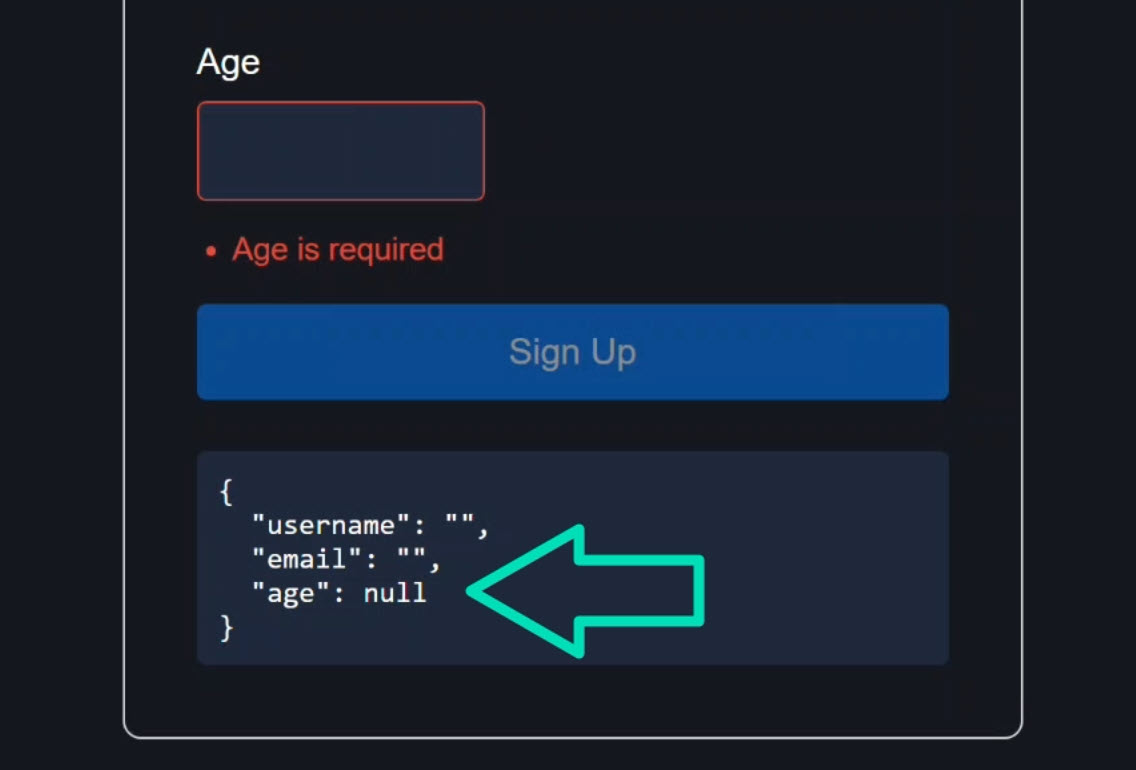
Previously, a text field would give you an empty string, but Angular now handles the conversion to null for us perfectly!
Clean, Typed Numeric Input in Angular 22
<input type="number"> looks correct but introduces avoidable UX issues.
Angular 22 removes the main blocker:
- You can bind numeric models to text inputs cleanly
- You retain strict typing and schema validation
For real applications, this is the better default (in many cases):
type="text"inputmode="numeric"- Schema validation
- Explicit keyboard handling
It’s a small change that eliminates a class of subtle UX bugs that often slip through reviews.
Taking This Further with Signal Forms
This example is just one piece of what Signal Forms are starting to simplify.
If you want to go deeper, I put together a full course that walks through building real-world forms step by step.
You can access it either directly or through YouTube membership, depending on what works best for you:
👉 Buy the course
👉 Get it with YouTube membership